Jack Henry Identity External Application Configuration Guide
Overview
This guide is designed for API consumers to provide to a financial institution’s back office administrator. It outlines the necessary steps and information required to establish a new external application for service-to-service integration. Completing this process correctly is essential for authorizing your integration with the Jack Henry platform. Feel free to add your specific Fintech name and product name, along with JWKs URL when providing these instructions to customers.
The institution must be onboarded to Jack Henry Identity
Customers who are not currently utilizing Banno or Jack Henry Identity must first complete an onboarding process. This involves opening a case with the jXchange Support team to request Jack Henry Identity onboarding for a new Fintech jXchange integration.
During this request, the customer must provide the email address for the initial administrator. This administrator will have the ability to invite other team members as additional administrators later.
After the Jack Henry Identity onboarding is complete, the customer can then proceed with the remaining configuration steps independently.
Establishing the Associated User
Before creating the external application, the the bank’s back office administrator should establish a dedicated “Associated User” via the Banno Admin Users & Groups section. We recommend the following steps for this:
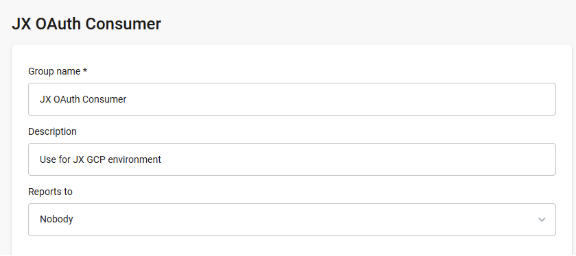
Create a Service Group
- Navigate to Groups and create a new group (e.g., “JX OAuth Consumer”). Do not assign any permissions to this group.
Create the Placeholder User
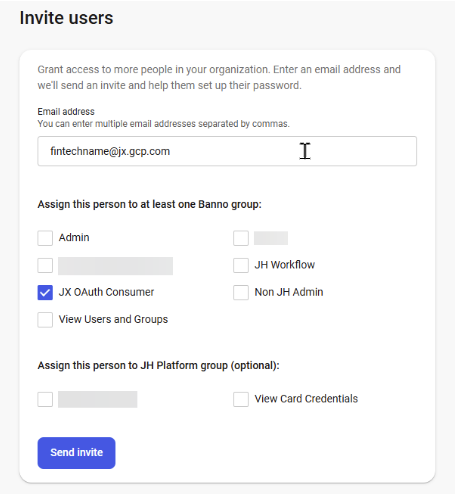
- Invite a new user using a “dummy” email (e.g., fintechname@yourbank.com).
This ‘Associated User’ acts as a system account and is used when configuring the external application.
We strongly recommend using a non-existent or administrative (non-employee) email to prevent the service account from being tied to a specific employee’s lifecycle (e.g., the service won’t break if an employee leaves the bank).
- Assign this user to the group created in Step 1.
External Application Creation Steps
Setup New External Application
- The bank’s back office administrator will need to navigate to the external application creation function and provide the following five pieces of information:
| Field | Required Value/Selection | Description |
|---|---|---|
| Name | Relevant name for the product being installed (e.g., MyFintech-MyProduct) | This is a freeform field used primarily for easy identification within the Jack Henry Identity portal. We recommend a format combining your Fintech name and Product name. |
| Application Type | Service Account | This is the required type for all service-to-service integrations. |
| Public key in PEM format or a JWKs URL | A valid, internet accessible JWKs URL | Recommendation: Always use a JWKs URL. While PEM format is supported, it requires manual updates for every key rotation, which is not recommended. |
| Associated User | Select the pre-established user | This must be the user account created in the pre-requisite steps. This is a dropdown selection. |
| Scopes | For JX-SOAP use: https://jackhenry.com/jx/service-gateway.write For JX-REST-Legacy (JX-RL) use: https://jackhenry.com/jx/service-gateway.write and https://jackhenry.com/platform/translations/jx-rl.write | Click the “Add scopes” button, search for jxchange, and select this specific scope value from the pop-up list. |
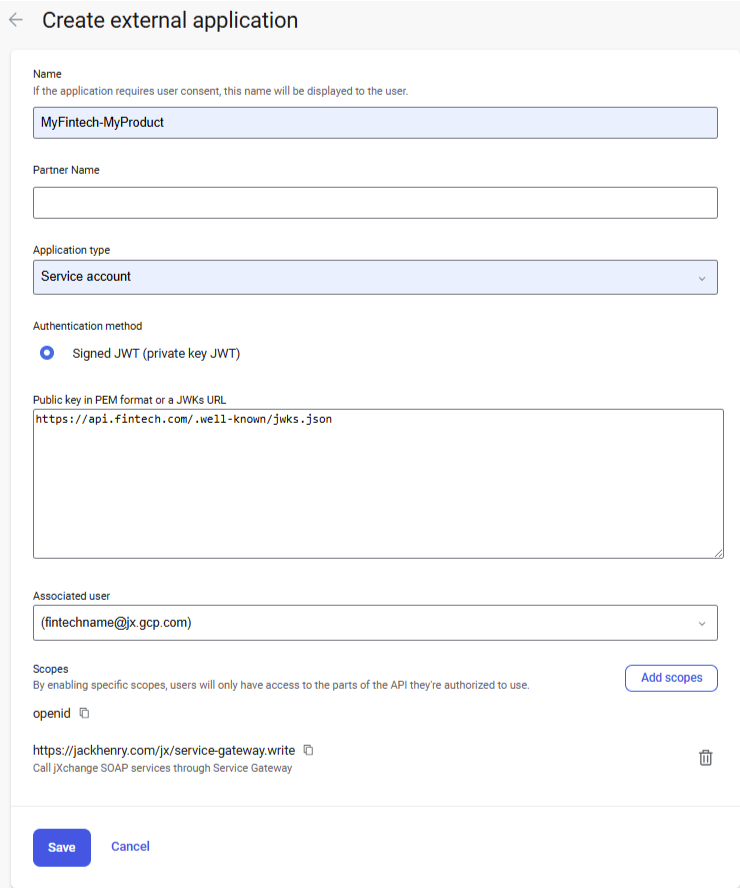
- Once all fields are populated, the administrator should click Save.
Retrieve Client Id
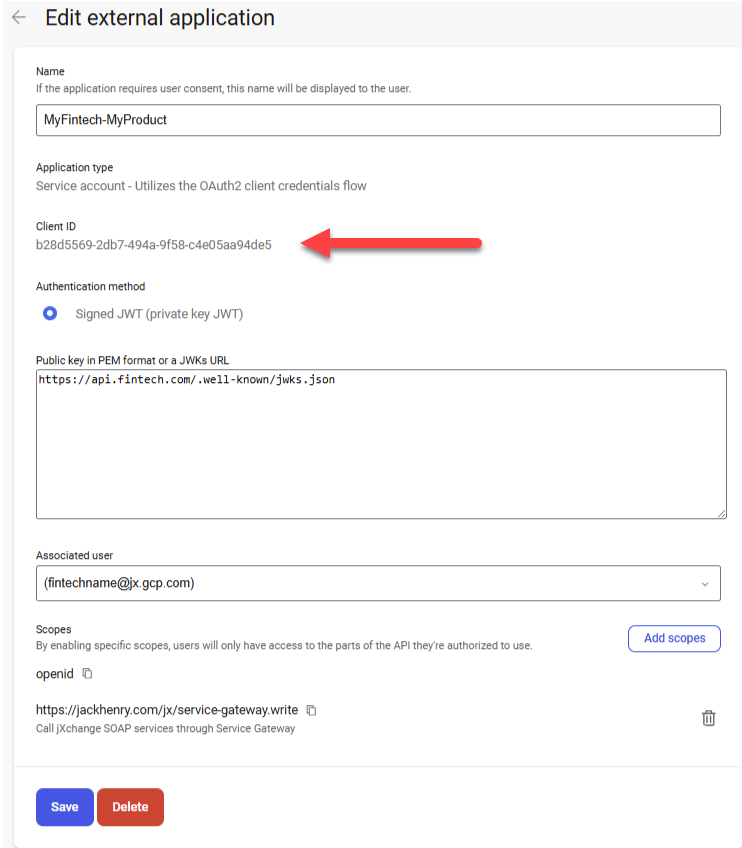
- The newly created external application will appear in the list of external applications.
- The administrator must select the new application to view its details.
- The system will have generated a unique Client ID. The administrator must retrieve this value.
jXchange Environment Setup Request
The bank’s back office administrator must submit the following information to Jack Henry by opening a case in the For Clients Portal and assigning it to the jXchange Support team:
- Summary: jXchange OAuth for FintechName-FintechProductName
- Description:
- The generated Client ID for the external application.
- The Fintech Name (e.g., FintechName).
- The Product Name (e.g., FintechProductName).
- Bank Routing ID
- Bank Environment (PROD, UAT)
Upon receiving the request, the jXchange Support Team will schedule the setup of the bank’s jXchange environment. Any additional steps or requests for information will be managed within the case.
- Have a how-to question? Seeing a weird error? Get help on StackOverflow.
- Register for the Developer Office Hours where we answer technical Q&A from the audience.